Photos
Make a seamless carouselfrom one wide photo.
Split one wide photo into Instagram carousel slides that join up as people swipe. Which shape to pick, how many slides, and how to keep faces off the seams.
By PostAll3 min read
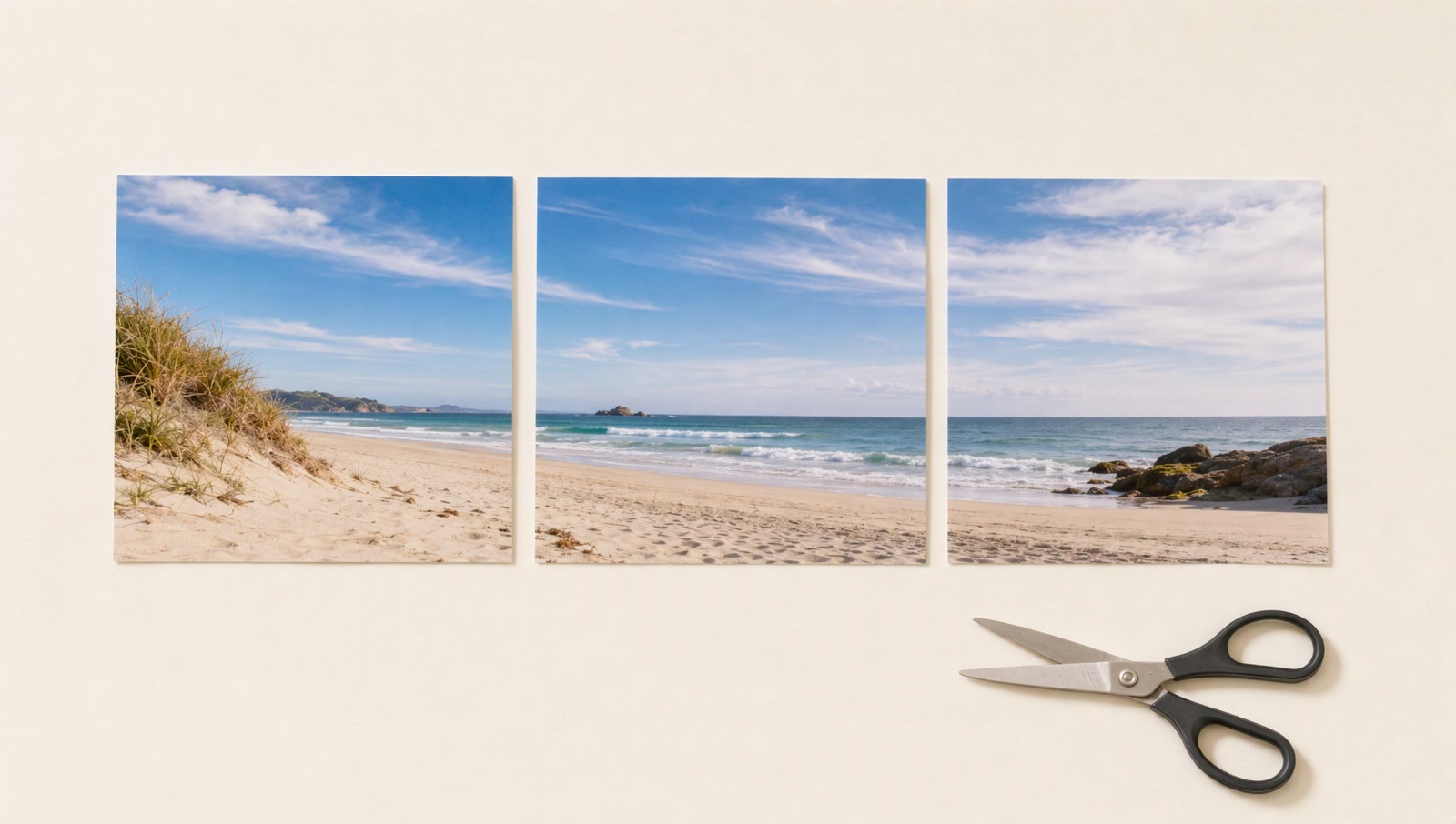
Cut the photo into equal slides of the same shape, keep the subject away from the cuts, and post the slides in order. Swiping does the rest.
How a swipe panorama works
A carousel shows one slide at a time, edge to edge. If the slides are pieces of one wide photo cut at exact intervals, swiping slides the picture along as if it were one long image. Nothing special is needed on Instagram's side: it's just the slides lining up.
Pick the shape first
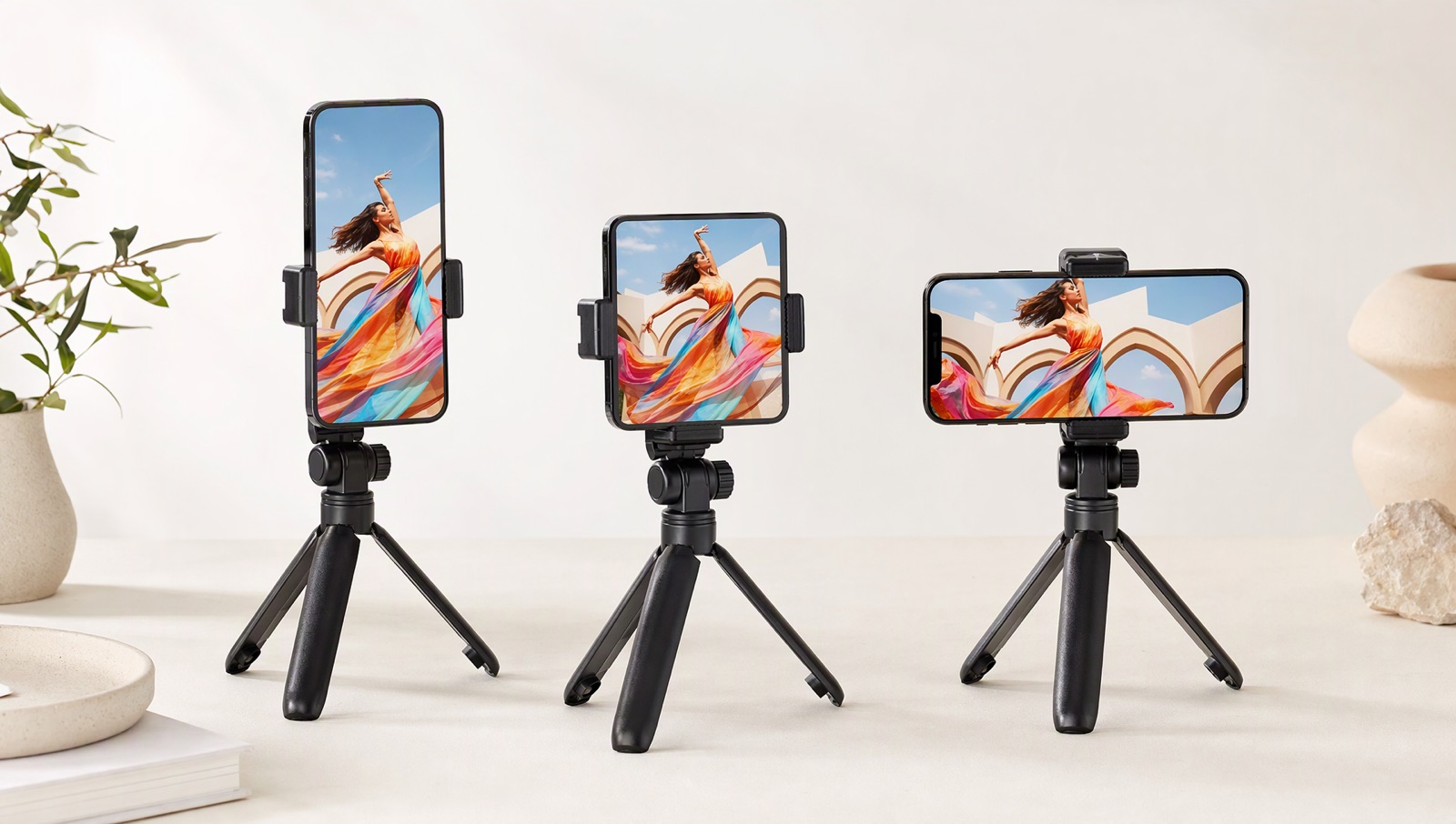
Every slide in an Instagram carousel uses the same shape as the first one, so the whole set must match. Portrait 4:5 (1080 × 1350) fills more of the screen; square 1:1 (1080 × 1080) fits wider panoramas into fewer slides.
How many slides
Divide the photo's width by the width of one slide. A photo about three times wider than it is tall makes three square slides, or about four in portrait. Too many slides and each piece shows too little to make sense on its own.
Keep faces off the seams
The cut between two slides is where the picture is most likely to look off. Before you split:
- Slide the photo so faces, text and products sit inside a slide, not across a cut.
- Put something interesting on the first slide, so people want to swipe.
- Check the last slide isn't mostly empty sky or wall.
Split a photo into a carousel
Cut one wide photo into slides that join up as people swipe your Instagram carousel.
Open Carousel splitterPost them in order
Upload the slides first to last. Name the files by number when you save them so they sort the right way in your camera roll. PostAll's splitter numbers them for you.